_MANUAL
_MANUAL
How to use “RaqsLOOPS”
RaqsLOOPS User Manual (iOS) (Last Updated: 2026/03/09)
0. What You Can Do With This App
RaqsLOOPS is a loop playback app specifically designed for belly dance rhythm practice and accompaniment.
You can select a genre (rhythm pattern), adjust the BPM (tempo), and toggle instrument parts ON/OFF during playback.
Furthermore, using the mixer, you can adjust the volume of each instrument, solo/mute channels, turn reverb ON/OFF, and change the theme (skin).
We designed the UI/UX with the concept "You'll understand how to use it just by trying it, even without reading the manual!", so anyone can enjoy using it easily.
1. Startup and Screen Layout
1-1. Logo Display on Startup
Immediately after launching the app, the logo and a spinner (loading indicator) will be displayed for about 2 seconds.
(You cannot operate the app while this is displayed. After loading is complete, it will automatically transition to the main screen.)
1-2. Top of the Screen (Fixed Header)
The top of the screen is fixed.

RaqsLOOPS: App name
Three icons on the right:
Link: Opens the external link (official website) in a browser
Skin: Opens the theme (skin) selection
Menu: Opens the information page
2. Basic Operations (3 Quick Steps)
Step 1: Select a Genre (Rhythm)
Tap the [GENRE] button
Select a genre name from the list
・A checkmark will be displayed next to the currently selected genre.
・The time signature (e.g., 4/4) is displayed on the right.
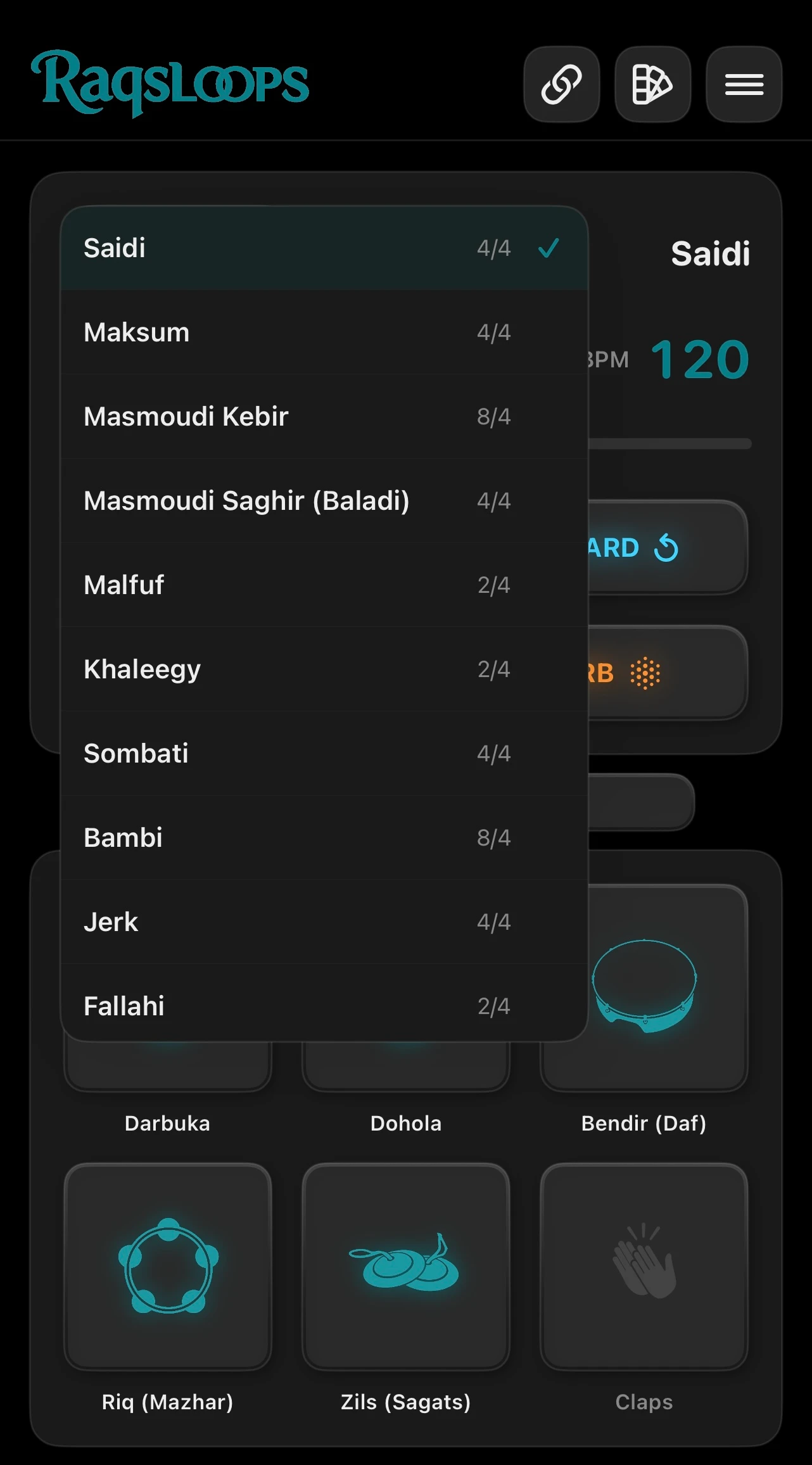
Note: Genres contain internal data such as pattern / time signature / default BPM / seamless compatibility (explained later).
Step 2: Adjust the BPM (Tempo)
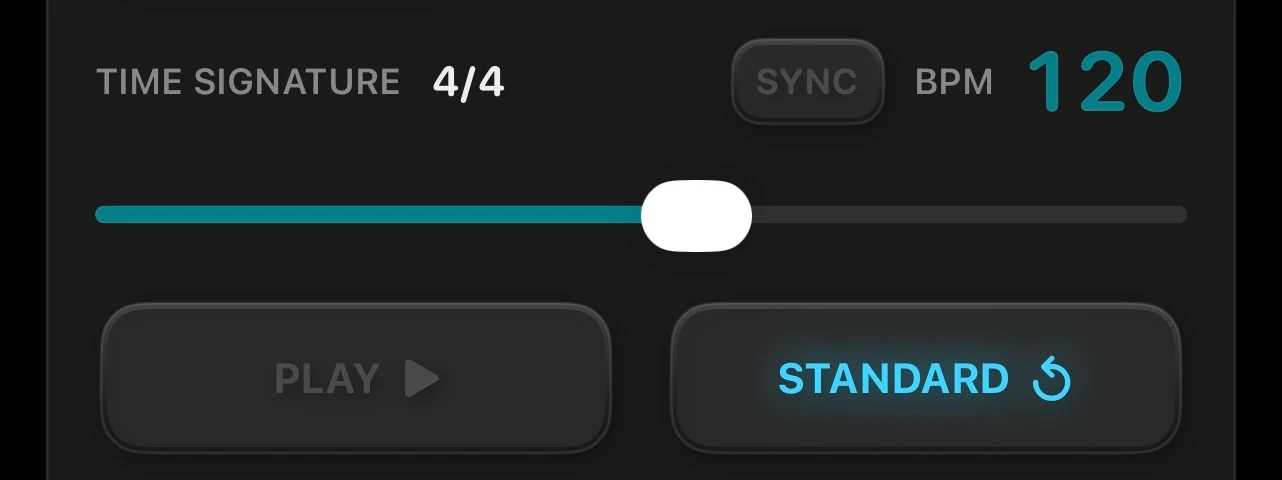
The BPM value is displayed on the right side of the screen.
Move the [BPM slider] below it to adjust the tempo.
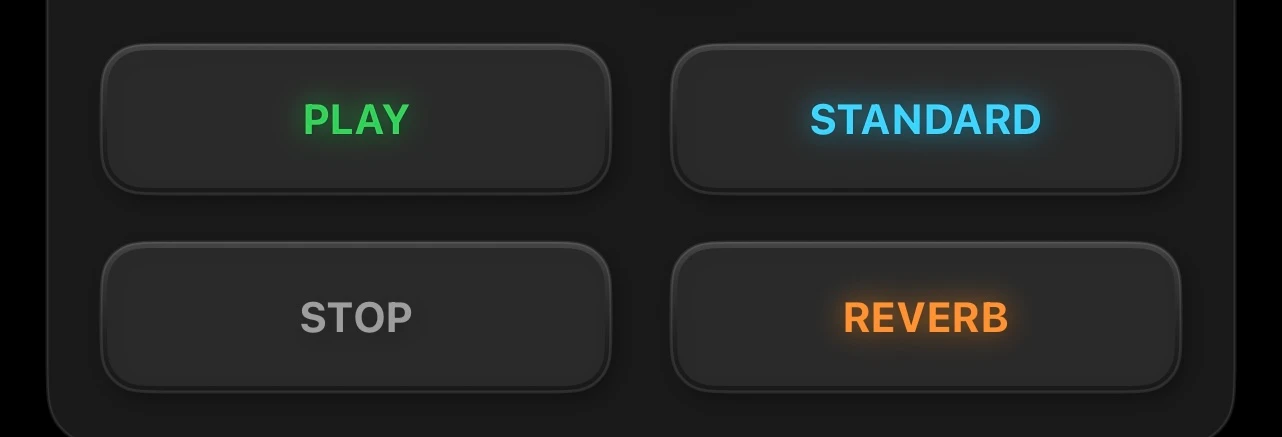
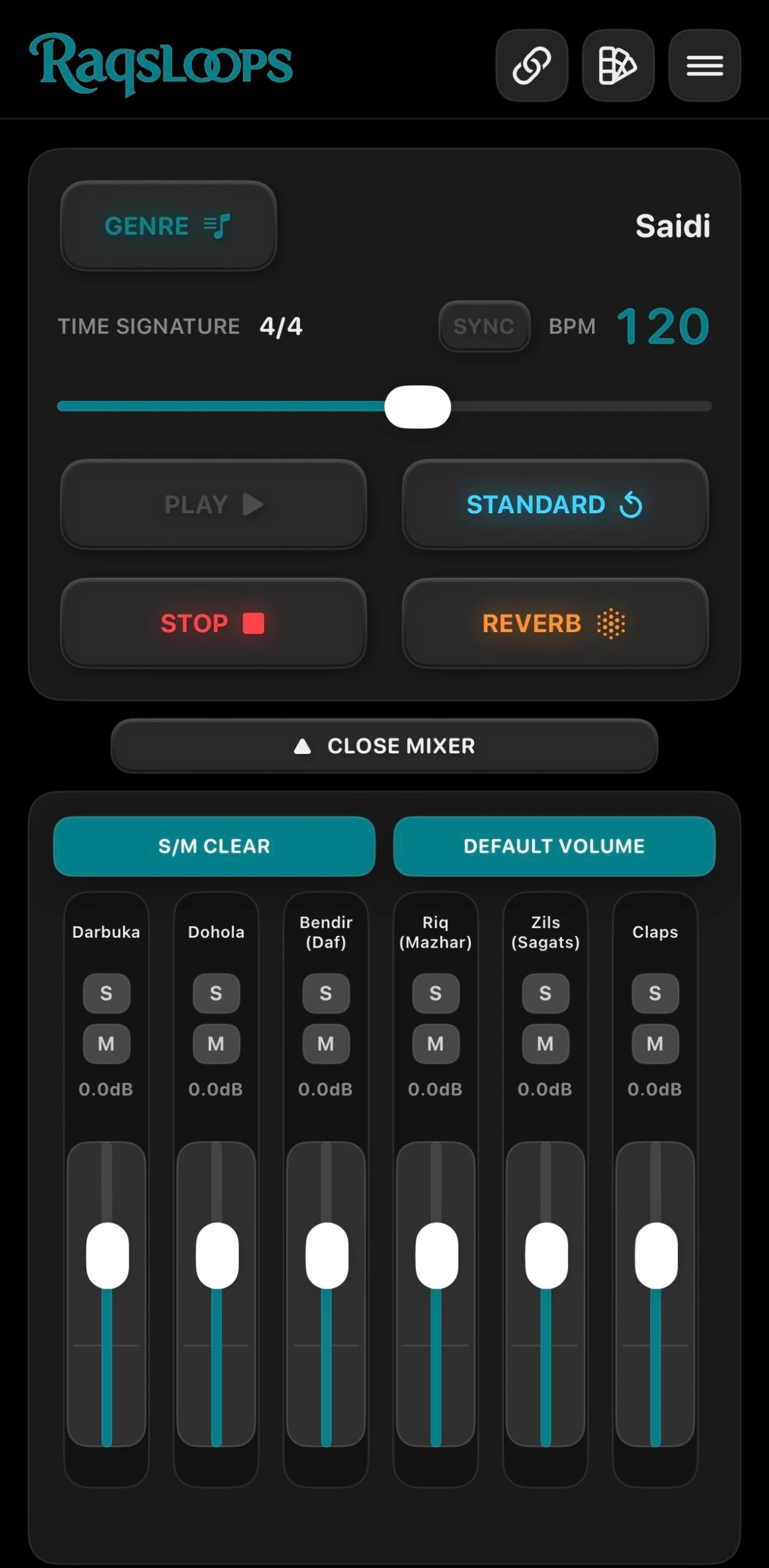
[STANDARD] (Return to standard tempo)
Tapping the [STANDARD] button will return the BPM to the default value for the selected genre.
(When the BPM is at the standard value for the selected genre, the STANDARD button will be "lit up".)
Step 3: Play / Stop / Reverb
[PLAY]: Start playback
[STOP]: Stop
[REVERB]: Reverb (echo) ON/OFF
3. [SYNC] (Playback Switching Mode)
The [SYNC] button near the BPM changes how the app behaves when switching genres.
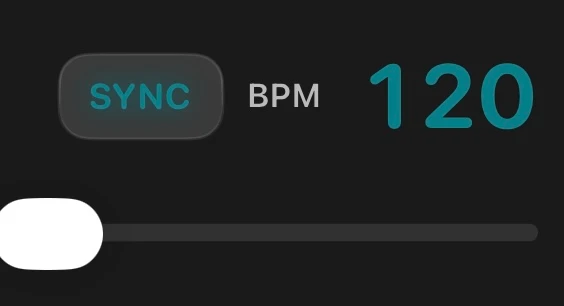
[SYNC] = ON (Synchronized / Seamless priority)
For "Seamless compatible genres = 4/4, 2/4, 8/4 time signatures":
・Switching genres during playback will happen without stopping (Hot Swap).
・The BPM maintains its previous value (transitions seamlessly at the same tempo).
(For non-seamless genres or the initial state, switching will happen normally.)
[SYNC] = OFF (Always treated as non-seamless)
Whenever you switch genres:
The BPM resets to the default value for that genre.
Playback starts from the beginning (it may stop momentarily and restart).
When to use which mode:
・[SYNC] ON
→ When you want to keep the tempo fixed for practice while switching rhythms.
→ When you want to compare similar genres.
・[SYNC] OFF
→ When you want to start with the genre's "standard tempo & from the very beginning" every time.
4. Part ON/OFF with Instrument Pads (PAD)
At the bottom of the main screen, there are PADs for each instrument ([Darbuka] / [Dohola] / [Bendir] / [Riq] / [Zils] / [Claps]).
※[Claps] is a supplementary sound to help feel the beat, so it is muted by default.
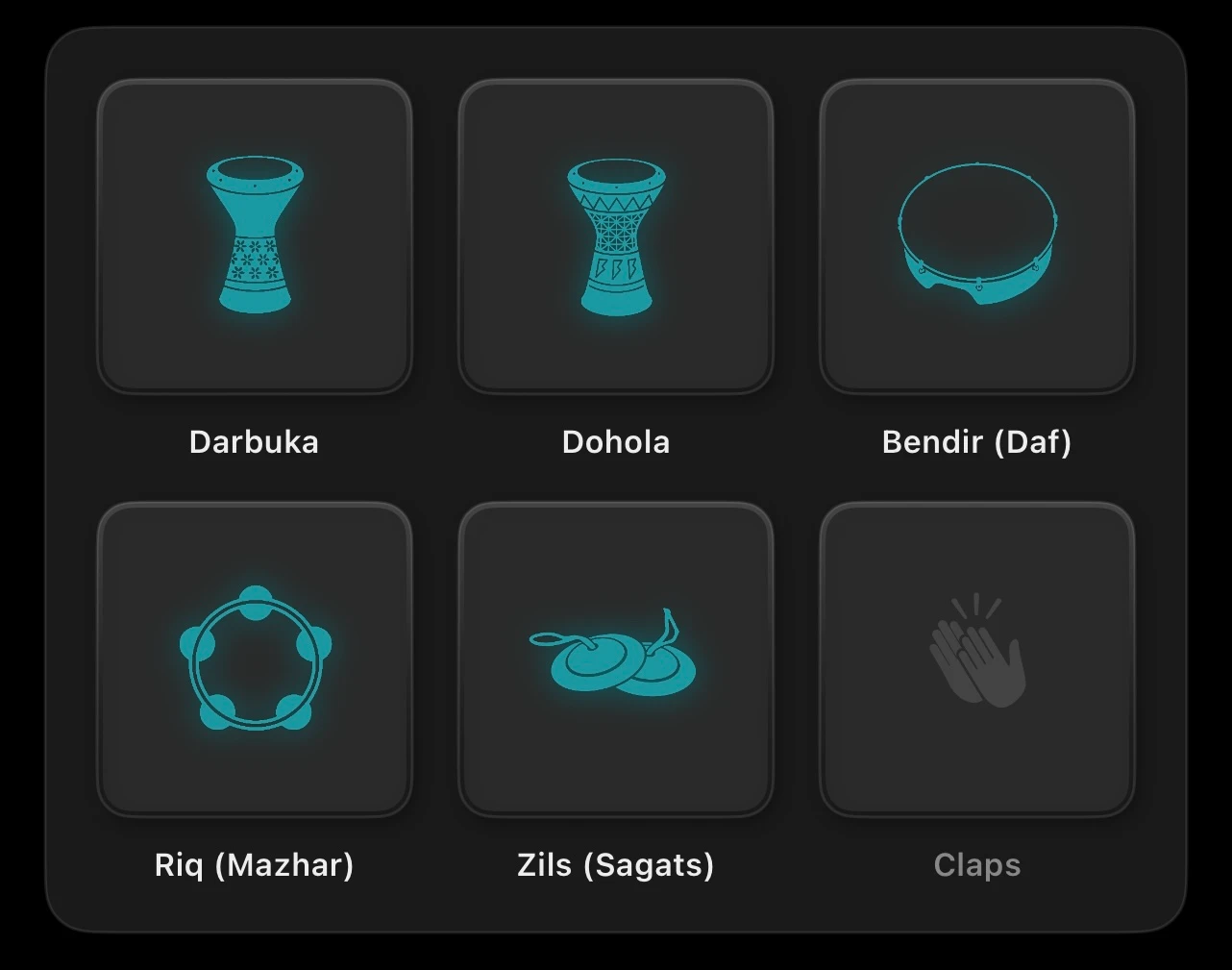
Tapping a PAD toggles that instrument part ON/OFF.
Instruments that are ON will light up/be highlighted (appearance varies by theme).
Instruments that are OFF will be muted (no sound).
5. MIXER Operations
5-1. Open / Close Mixer
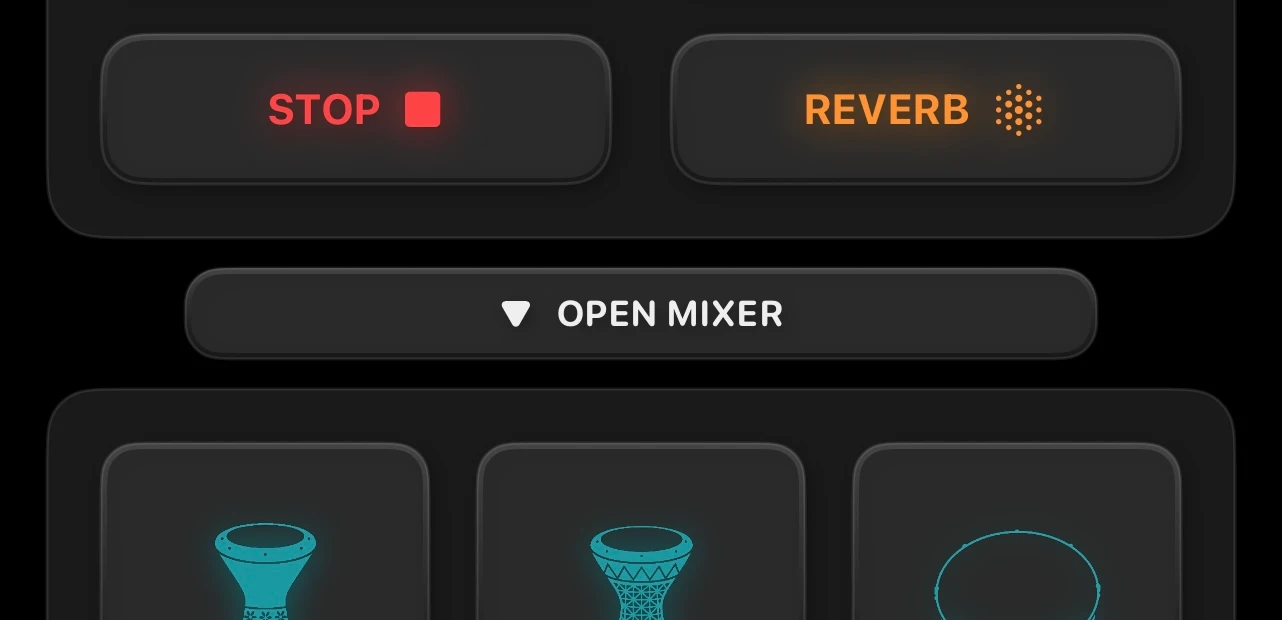
Toggle this using the buttons above the PAD area.
[OPEN MIXER]: Show the mixer
[CLOSE MIXER]: Hide the mixer
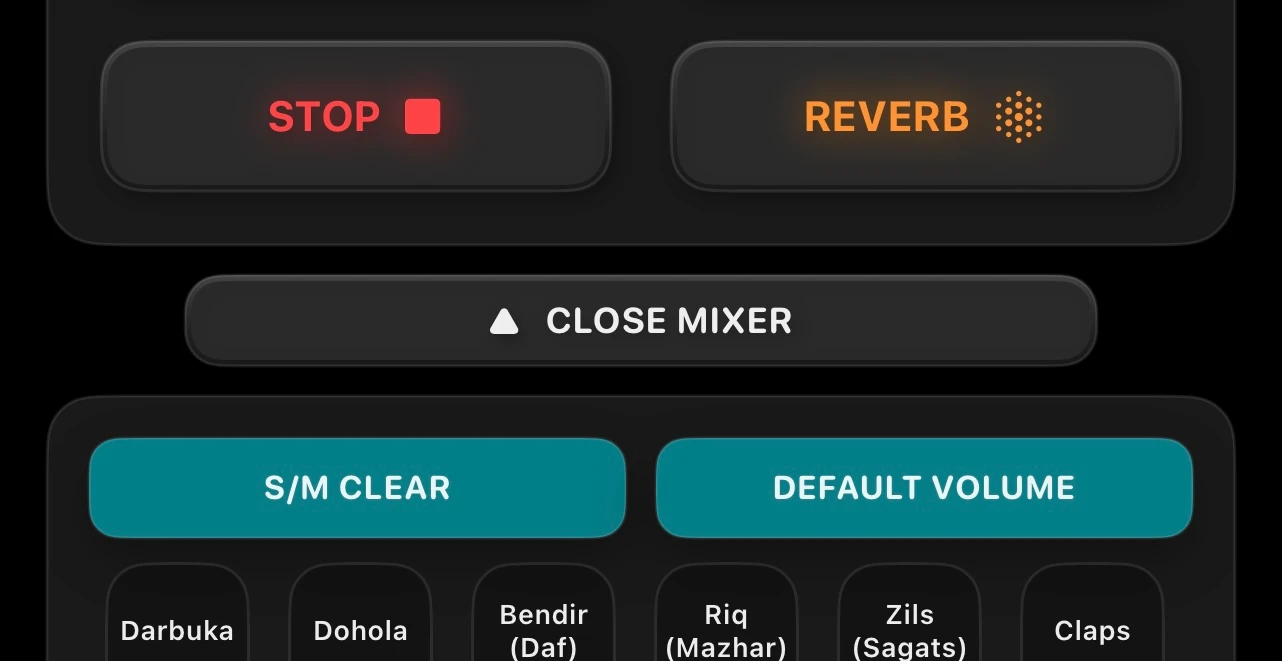
5-2. Mixer Buttons
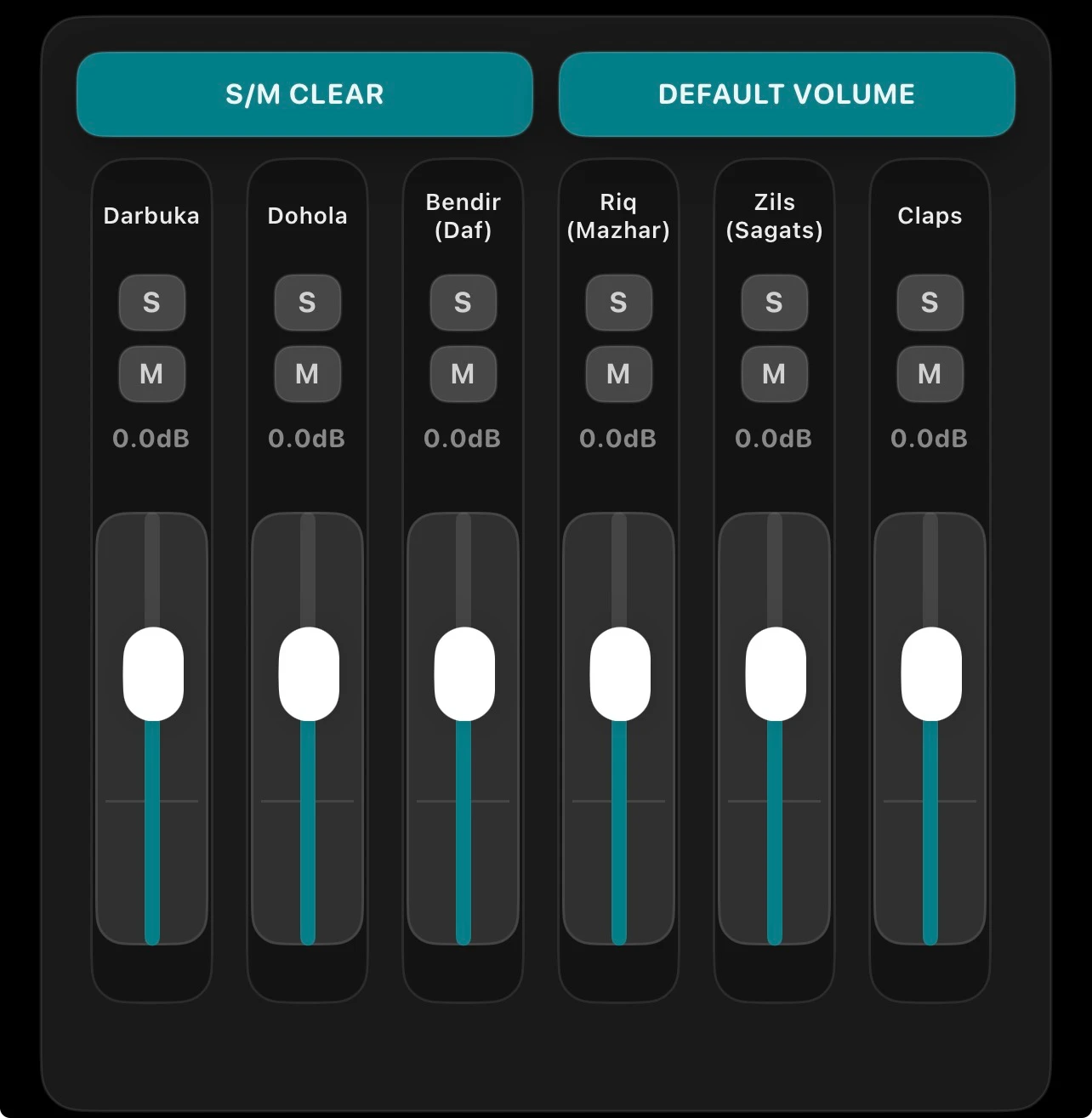
[S/M CLEAR]
Resets all solo/mute states and returns to the default "All ON" state.
[DEFAULT VOLUME]
Returns the volume of all channels to 0.0dB (standard).
[S] (Solo): Listen to only that channel prominently (multiple can be selected).
[M] (Mute): Silences that channel.
dB Display: Current volume (-∞ to +6dB).
Vertical Fader: Volume adjustment (move up to increase volume).
Tip: During solo mode, channels other than the solo target are dimmed (indicating they "cannot be heard because of solo").
6. Changing Themes (Skins)
6-1. Open the Skin Selection Screen
Tap the Skin icon on the right side of the fixed header.
6-2. Operating the Skin Screen
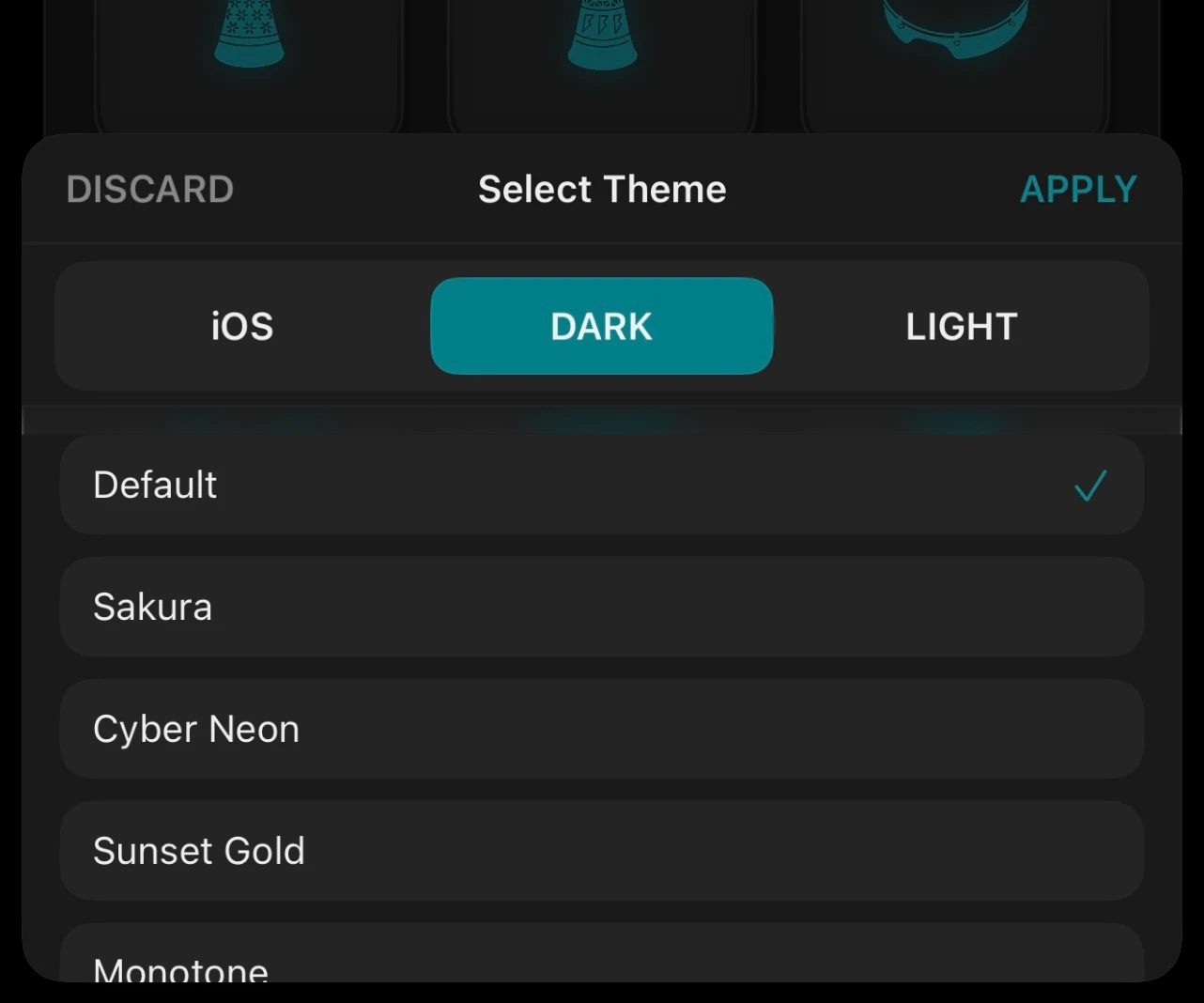
Top:
[DISCARD]: Discard changes and go back.
[APPLY]: Apply changes and go back.
[Mode] (Appearance Mode):
[iOS] / [DARK] / [LIGHT]
Theme (Color Scheme):
Select from the list (a checkmark appears while selected).
※If you want to change the skin, be sure to tap [APPLY] to confirm.
Skin settings are saved within the app and will be retained the next time you launch it (they will be reset if you delete the app).
Items labeled [(static)] do not support DARK / LIGHT modes.
7. MENU Button (Information)
Since this does not involve app operation, it is omitted here. Note that the 14-language support applies only to the information page opened by this menu button, as well as the linked manual and privacy policy.
8. Internal Routing
Sound→Compressor1→MIX BUS1→MIX BUS2→Compressor2→2BAND Maximizer→Limiter→Output
MIX BUS1→Reverb→MIX BUS2
※Compressor, Limiter, and Reverb are DSP effects newly developed for RaqsLOOPS.
※2BAND Maximizer is a high-performance AudioUnit newly developed for RaqsLOOPS.
9. FAQ & Troubleshooting
・No sound
Check your iPhone's volume / silent mode settings / output destination (Bluetooth/Earphones).
Check the mixer to ensure all channels are not muted.
[REVERB] only changes the tone; sound will still play even if it's OFF (it is not the cause of "no sound").
・Playback stops momentarily when switching genres
When [SYNC] is OFF, the behavior is always "Default BPM + start from the beginning," so playback may stop momentarily and restart.
If you turn [SYNC] ON, it will switch seamlessly (※Provided the genre supports seamless switching).
・Playback stopped when I muted everything
If a completely silent state continues, the app may automatically stop to save power. Please press [PLAY] again.
Appendix A: Button List (Functions when pressed)
[GENRE]: Opens the genre selection list
[SYNC]: Toggles genre switching behavior (Seamless priority / Always from the beginning)
[BPM slider]: Adjusts tempo
[STANDARD]: Returns to the genre's default BPM
[PLAY]: Starts playback
[STOP]: Stops playback
[REVERB]: Reverb ON/OFF
[OPEN MIXER] / [CLOSE MIXER]: Toggles mixer display
[S/M CLEAR]: Clears solo/mute states to turn all ON
[DEFAULT VOLUME]: Sets all channels to 0dB
Link: Opens the official website
Skin: Opens the theme selection screen
Menu: Opens the information page